Toward — Quick Start Guide
Overview
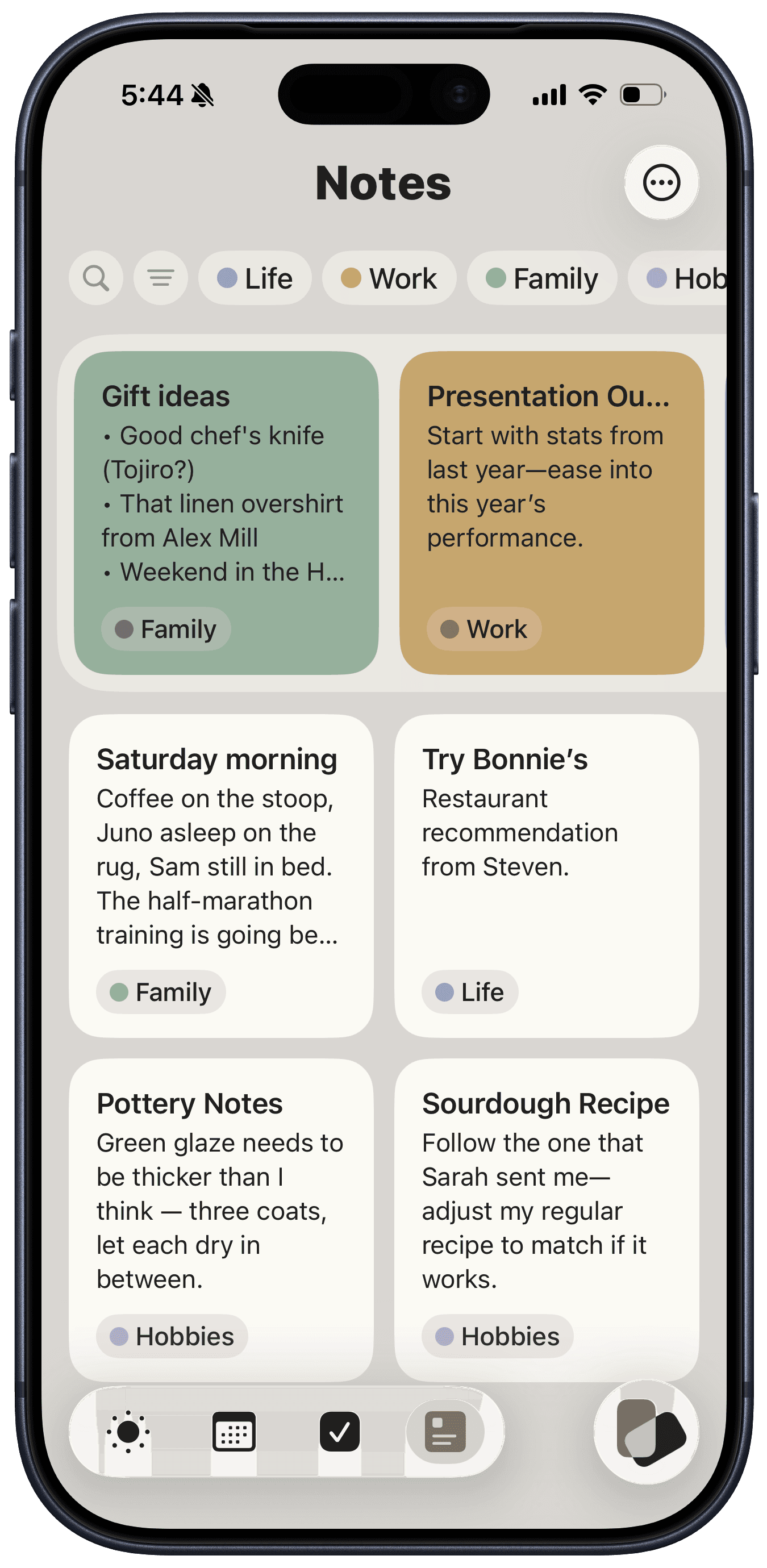
Toward has four tabs along the bottom:
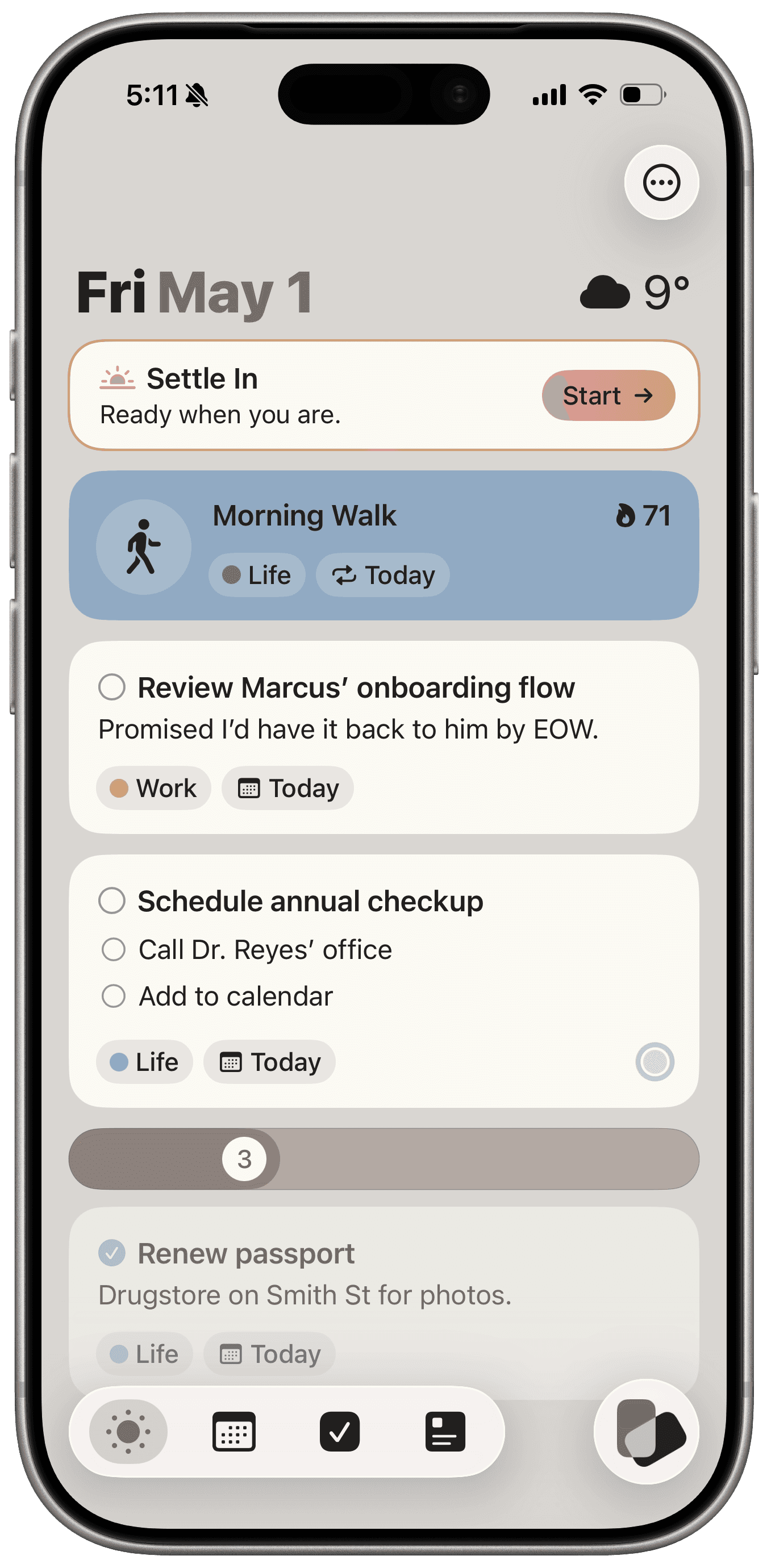
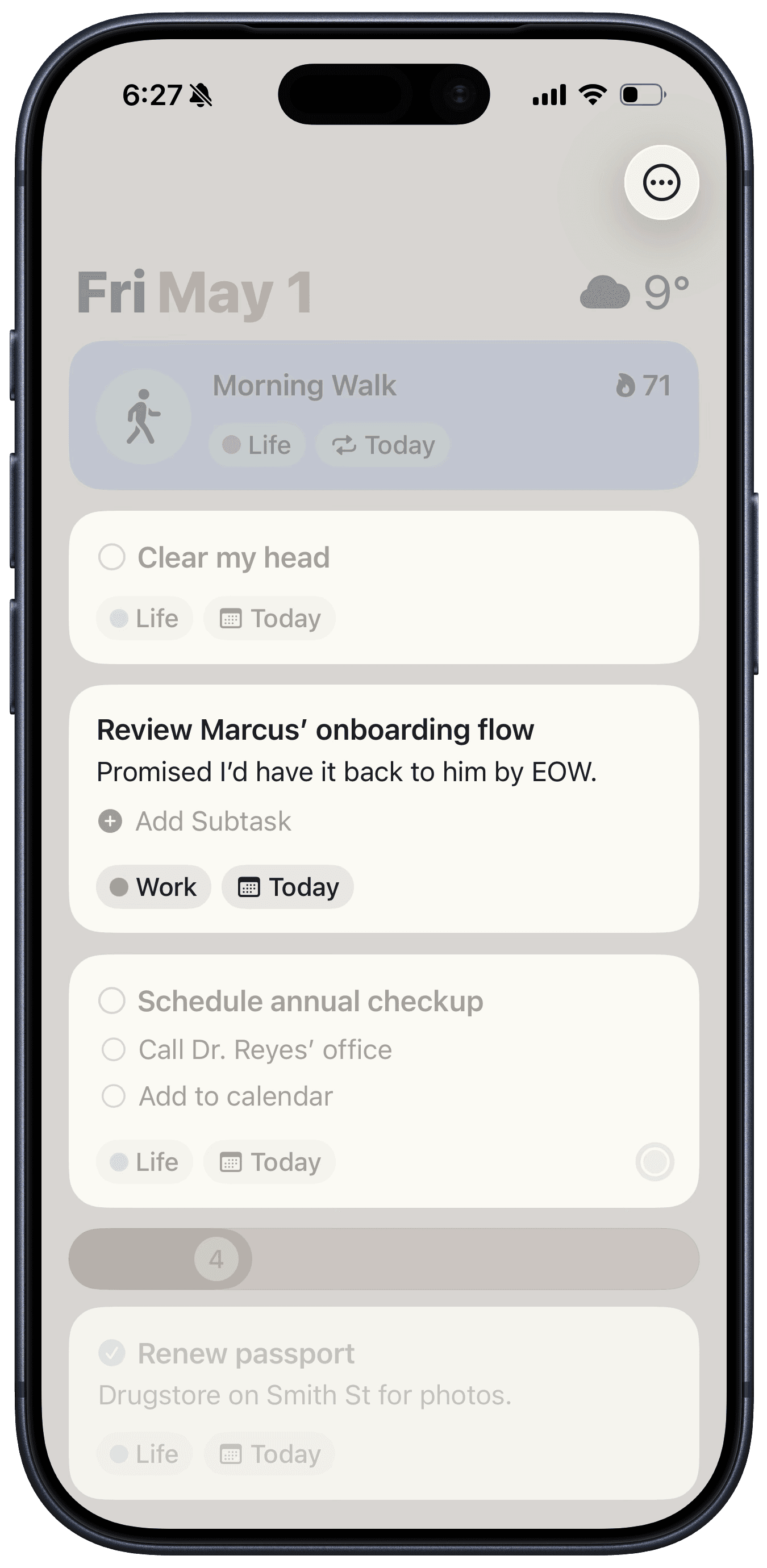
Today — Your tasks for today, plus weather and calendar events. Your morning and evening ritual prompts live here too.
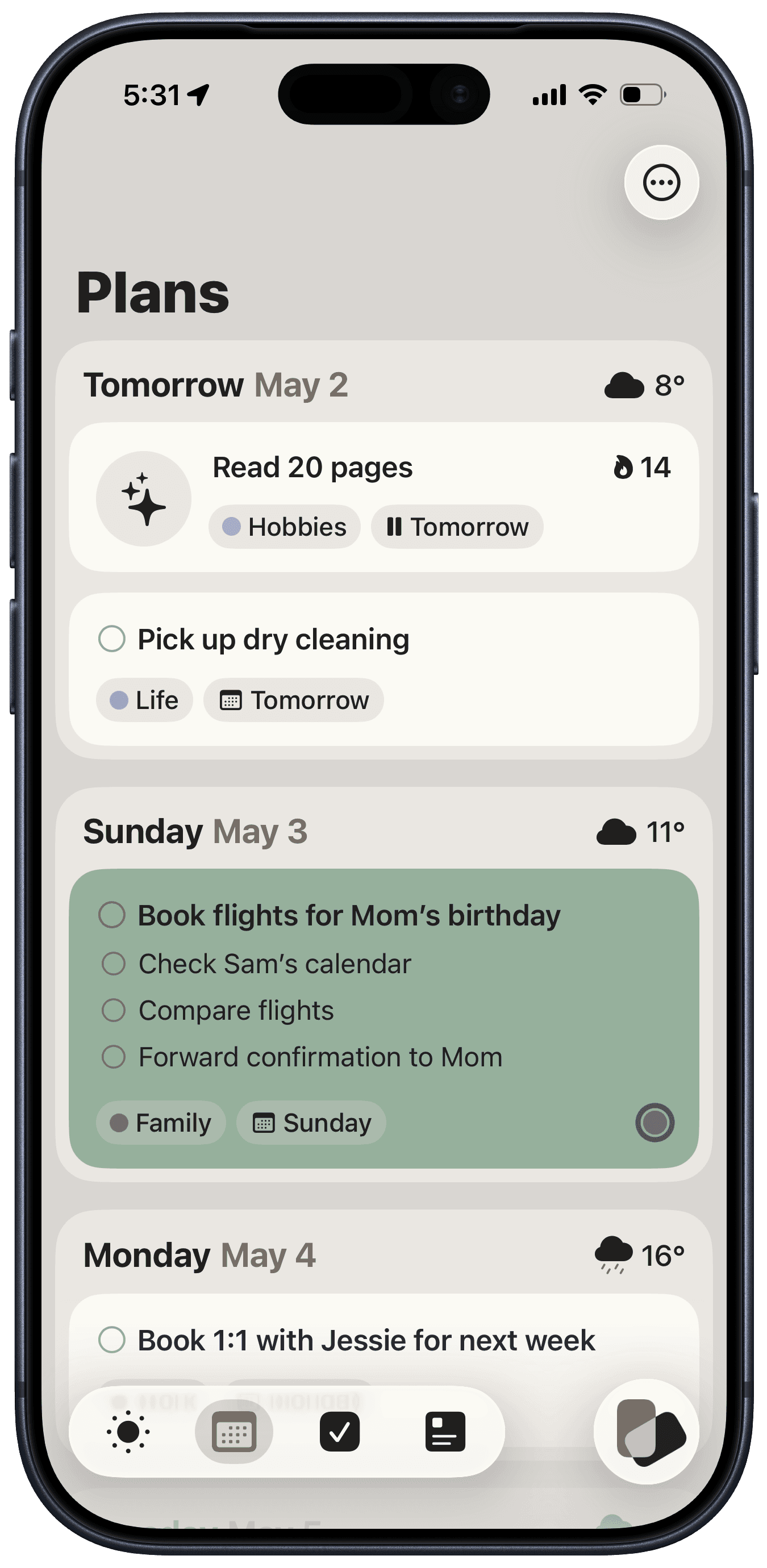
Plans — Your next 7 days of tasks, weather, and calendar events (plus monthly sections below).
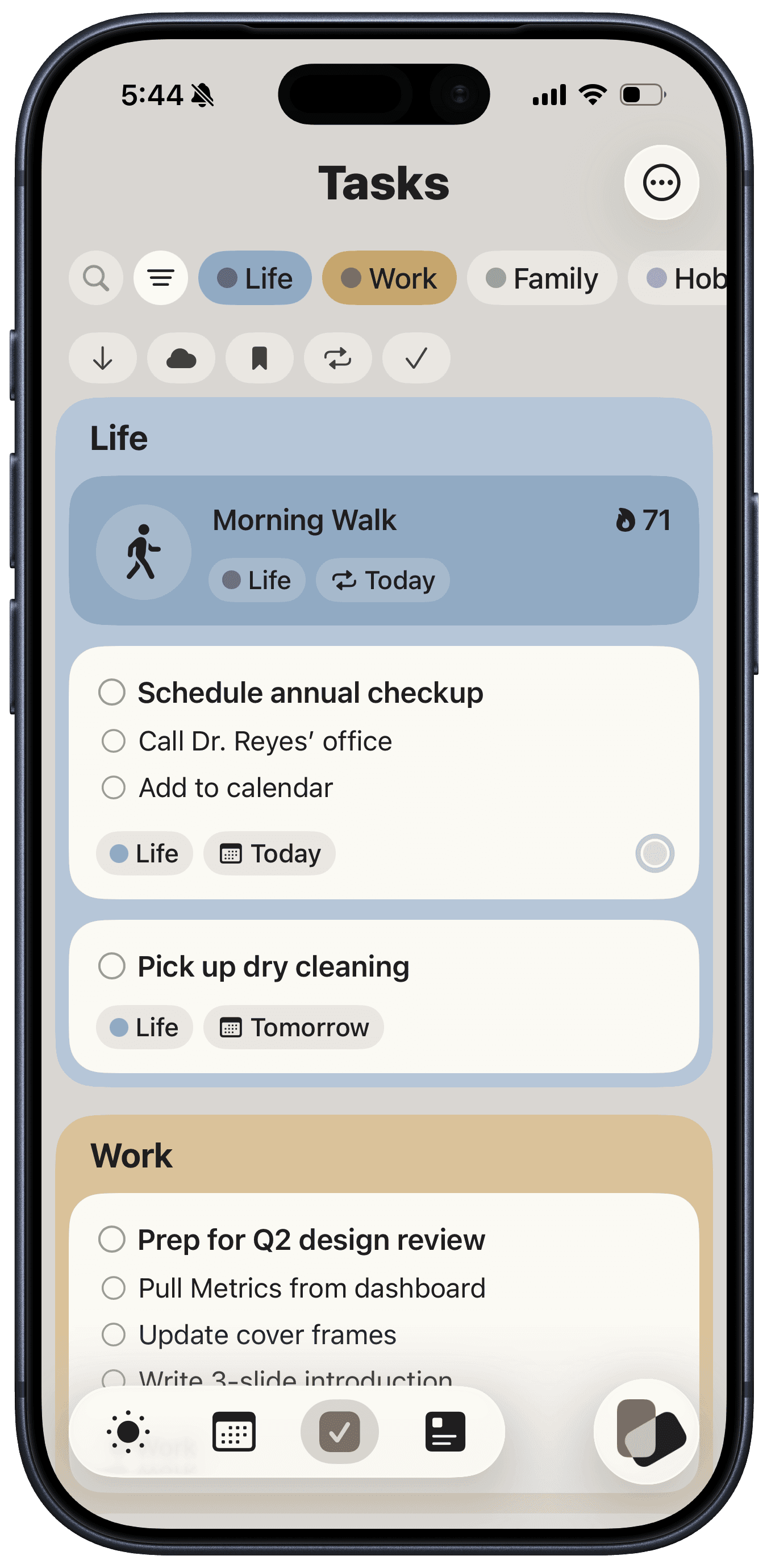
Tasks — All your Tasks and Habits organized by Stack (more on this below).
Notes — All your Notes organized by Stack.
To the right of the tabs is the Toward Button, which you can tap to add a new Task, Note, or Habit to the app.
Toward also ships with three colour palettes and a couple of text styles — you can swap them anytime in Settings → Appearance.
QuickAdd (Toward Button)
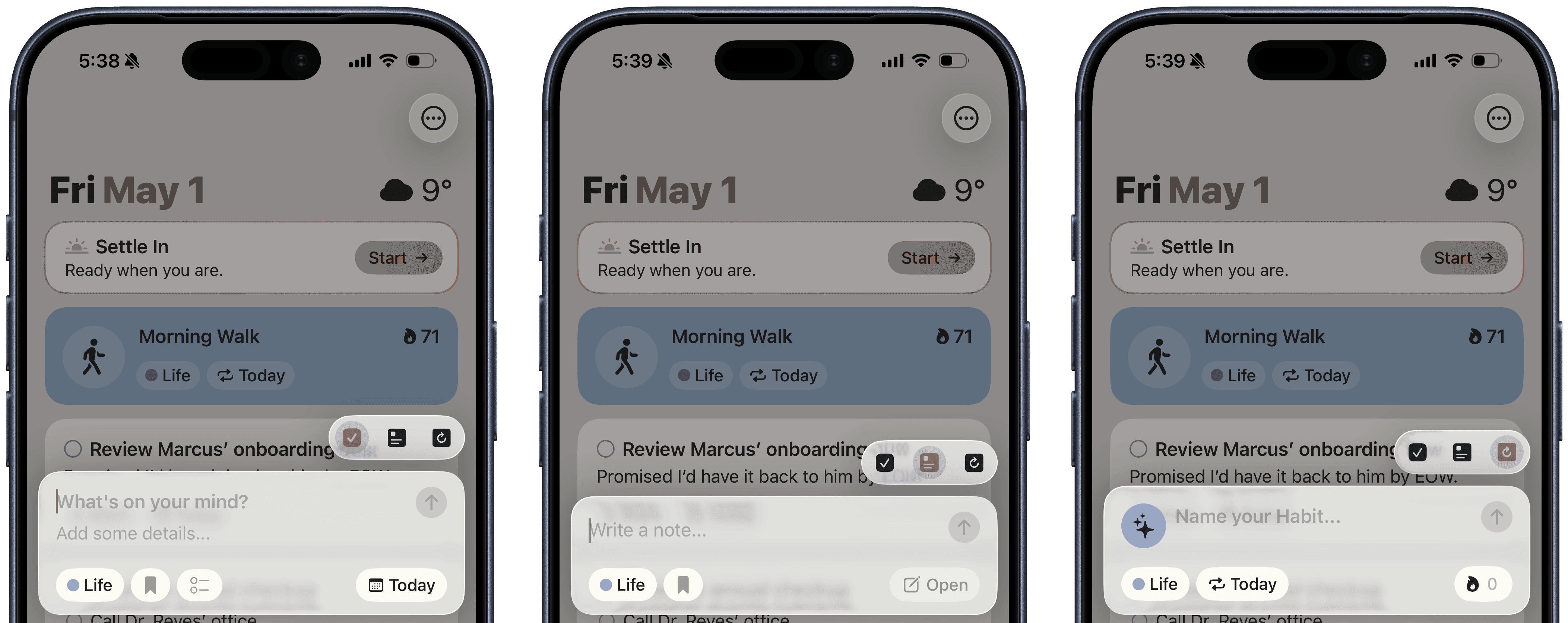
Tapping the Toward Button opens the Quick Add sheet. It has three modes — toggle between them at the top right:
Tasks — For things you need to do
Notes — For free-form text
Habits — For repeating practices you want to build
Every mode includes:
Stack switcher (bottom left) for changing the Stack for your Task, Habit, or Note
Submit button (top right) for saving your Task, Habit, or Note
For Tasks:
Add a Title and Details in the text fields
Tap the Bookmark chip to mark the Task as important
Tap the Checklist chip to add subtasks
Tap the Schedule chip (bottom right) to pick a date and time or set a repeating schedule
For Notes:
Add the body of your Note to the text field
Tap the Bookmark chip to mark the Note as important
Tap Open (bottom right) to jump straight into the full editor and keep working on your Note
For Habits:
Name your Habit in the text field
Tap the Icon circle to pick an icon (more options coming soon!)
Tap the Schedule chip (to the right of Stack) to change the start date of your Habit and adjust the cadence (daily by default)
Tap the Streak chip to set a starting number (helpful if you've been doing this Habit consistently already)
Stacks
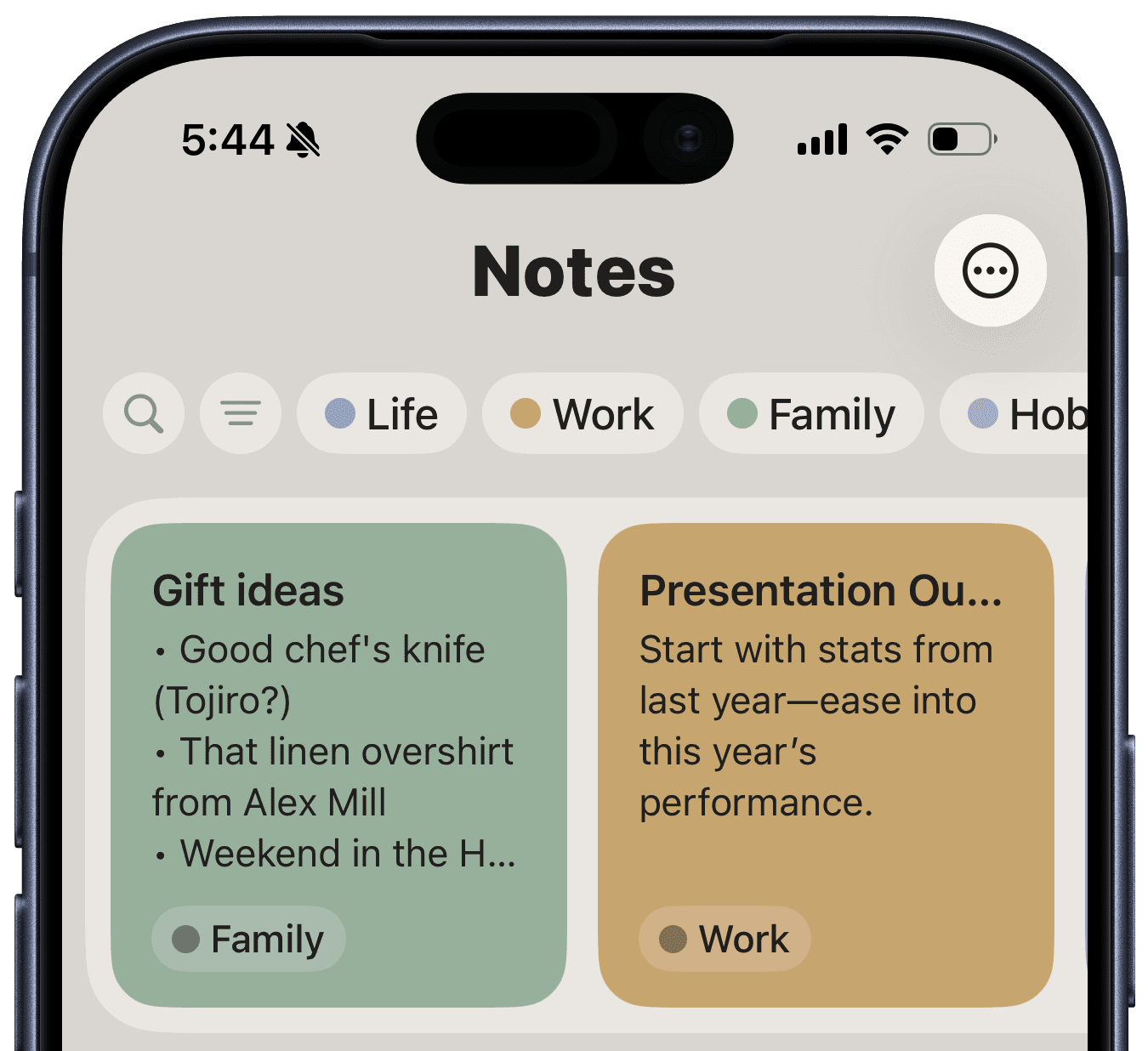
Every Task, Habit, and Note belongs to a Stack. Stacks are essentially groups of Tasks, so you could have one for Life, Work, Hobbies, etc.
Your first Stack is created for you and called "Inbox." New Tasks, Habits, and Notes will be created in this Stack by default.
Long-press on any Stack chip at the top of the Tasks or Notes views to open a context menu and perform one of the following actions:
Create a New Stack
Edit the Stack
Reorder Stacks (order persists across both tabs)
Set as Default
Delete Stack (you can't delete your default Stack)
Drag & Drop
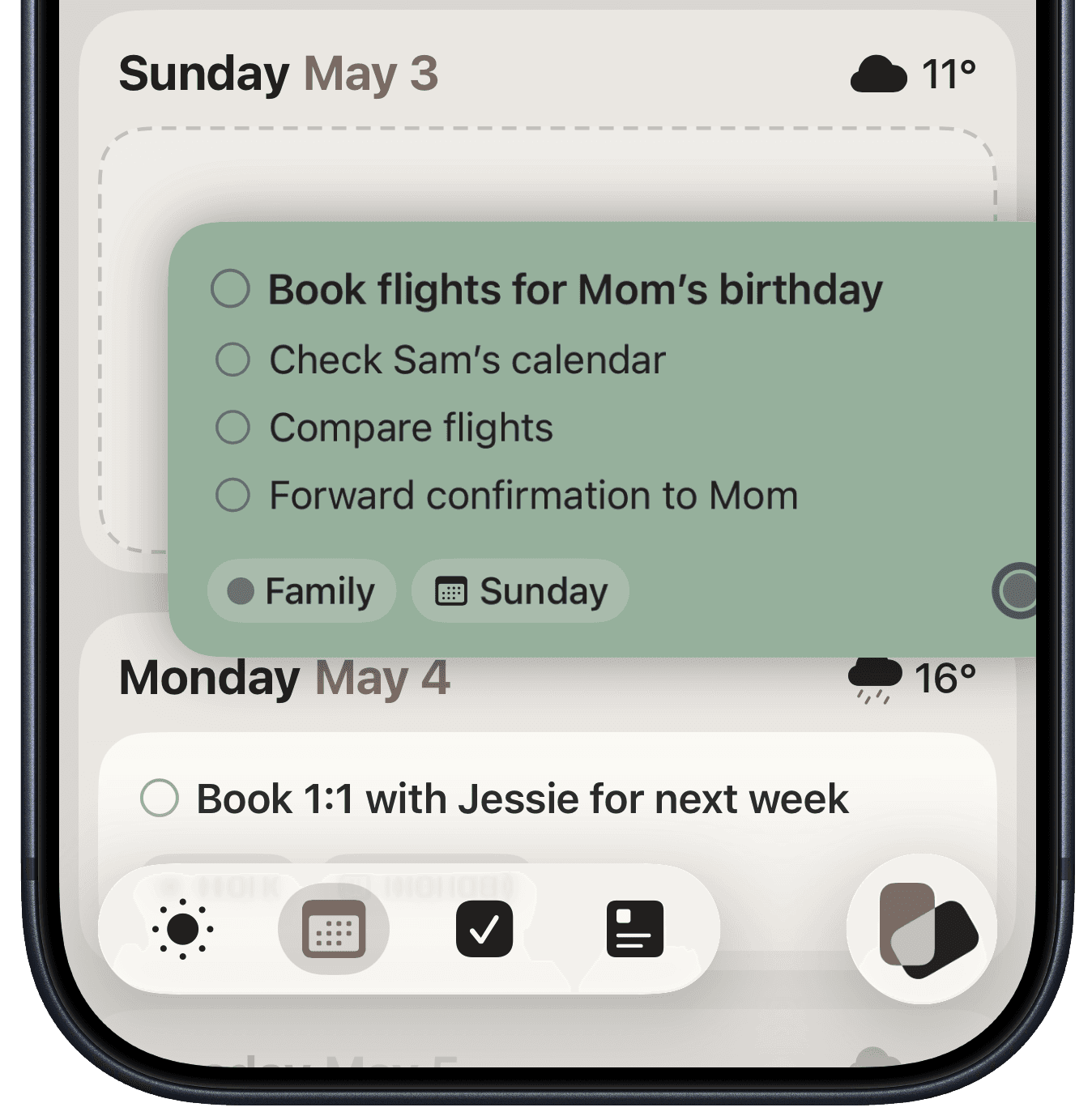
This is where Toward really shines. Long-press on any Task, Habit, or Note card until it lifts, then drag it where you want. Release to drop. Works on every tab — though Notes and Tasks can't move between their tabs.
For Tasks and Habits
Up or down the list — reorder cards however you plan to tackle them.
Between sections — change a card's Schedule or Stack. In Plans, drag Tasks between days to reschedule.
Between tabs — same idea. Keep holding the card with one finger, then tap the destination tab with another.
Multiple cards at once — lift one card, then tap others with a second finger to stack them. Whatever you do at the drop applies to all of them.
For Notes
Drag any Note between the Marked shelf at the top and the Unmarked section below.
Interacting with Tasks & Habits
Tasks and Habits live in the same lists so you can plan your day around both.
Completions
Tap the circle next to a Task's title to complete it. Today's completed Tasks live in the Today view's completed section; older ones live in the Tasks tab.
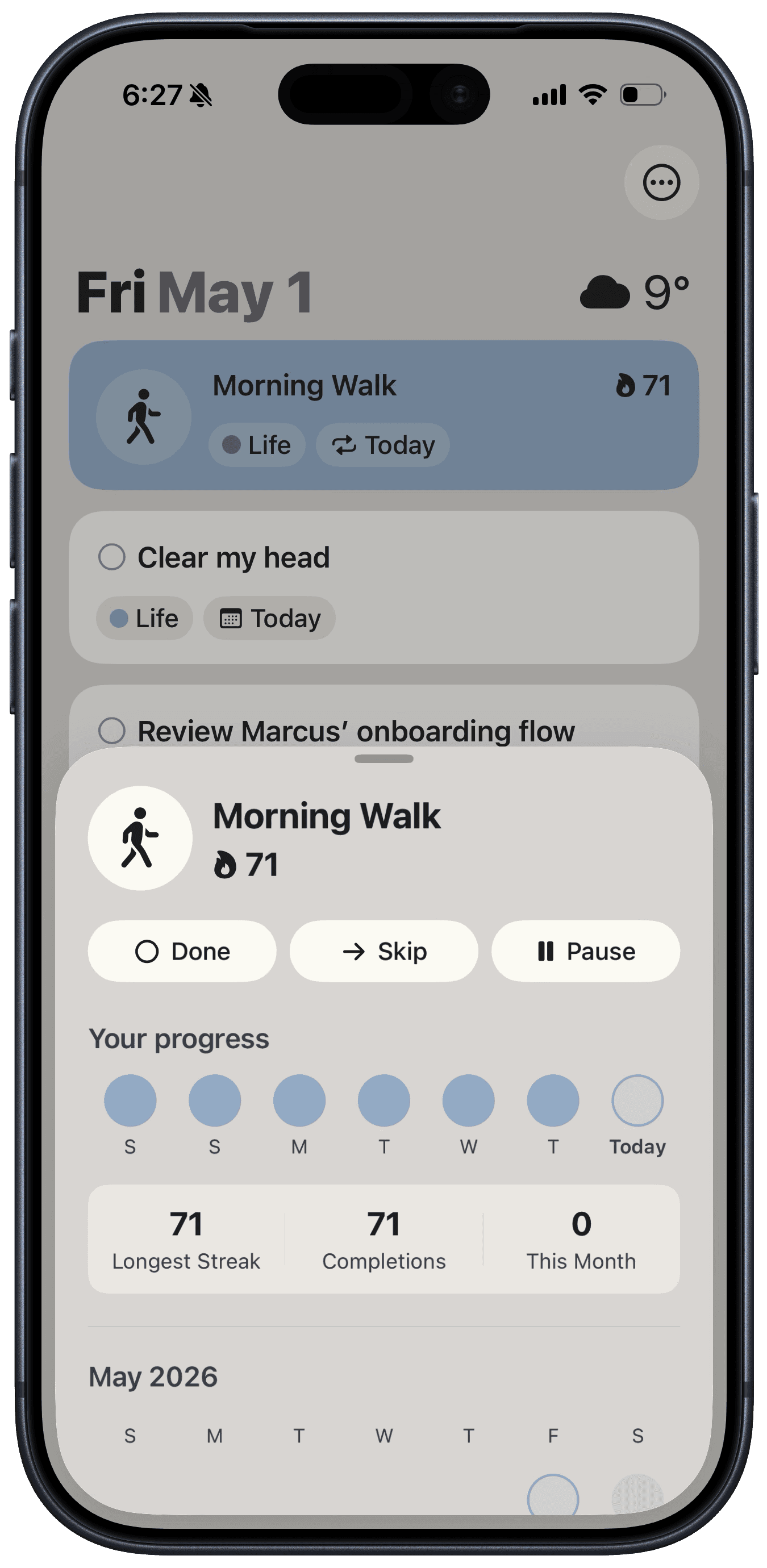
Tap the icon next to a Habit's title to complete it. You can also Skip or Pause to protect your Streak — tap a Habit card to open its sheet:
Skip moves the Habit to its next scheduled day. Your Streak holds but doesn't grow until you complete it again.
Pause halts the Habit until a date you choose. Your Streak holds for the duration (perfect if you're travelling).
Tap to Edit
Tap a Task card to enter inline Edit Mode — the card expands so you can edit its title, details, subtasks, schedule, or stack. Tap outside to dismiss.
Tap a Habit card to open Habit Sheet, where you can edit its name and icon, see stats, and review your completion history.
Note: You can tap a card's Stack or Schedule chip directly to adjust either without entering Edit Mode or opening Habit Sheet.
Scheduling
Tap the Schedule chip to move a Task or Habit to another day (Habits pause until that date) or to adjust cadence for repeating ones.
Swipe Left or Right
Swipe right to Mark/Unmark a card as important
Swipe left to enter Selection mode for Bulk Actions
Swipe left on Subtasks to delete them
Bulk Actions
In Selection mode, use the Bulk Action Toolbar at the bottom of the screen to:
Tap any card to add or remove it from the selection
Tap Schedule to set a date and time (Habits Pause until that date)
Tap Mark to toggle mark on all selected
Tap Stack to move all selected to a different Stack
Tap Delete to delete all selected
Tap ✕ to exit Selection mode
Use Select All / Deselect All to toggle selections
Filters and Sorts
Tap the Stack chips at the top to filter the list — pick one, pick several, or pick none to see everything.
Tap Search (top left) to filter by keyword.
Tap Filter (top left) to open the Filter Row:
Timing — sort by date and time
Someday — only Tasks and Habits with no date attached
Marked — only the important ones
Habits — only Habits
Completed — only completed cards
Mix and match as much as you'd like.
Interacting with Notes
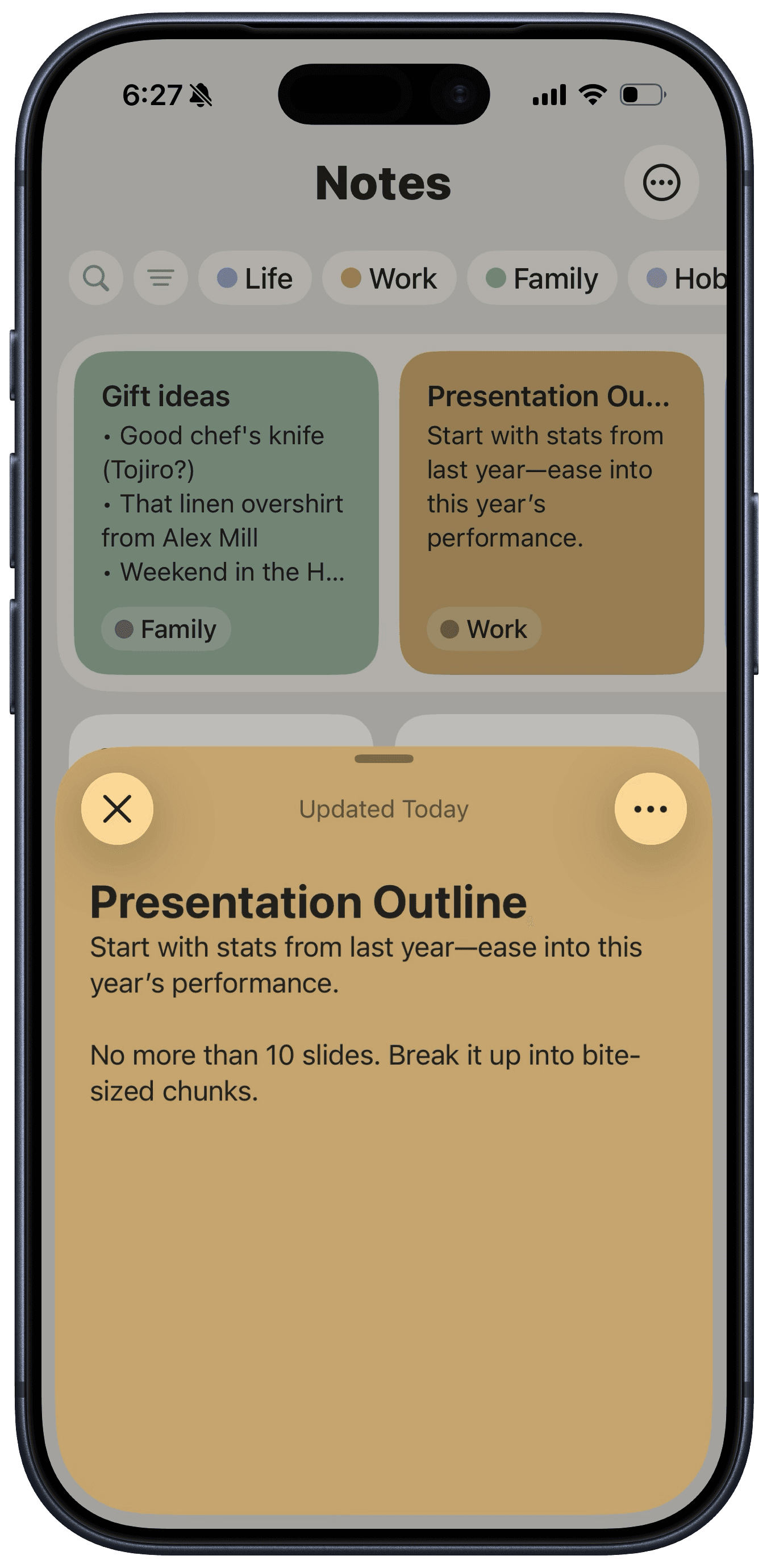
Marked Notes sit in a horizontal shelf at the top of the Notes tab. Unmarked Notes appear below.
Editing
Tap any Note to open the editor. The menu in the top right lets you Mark/Unmark, change Stack, archive, or delete.
Bulk Actions
Swipe left on any Unmarked Note to enter Bulk Selection Mode (just like with Tasks). You can bulk Mark, Archive, Delete, or change Stack on all selected Notes.
Filters and Sorts
Tap the Stack chips at the top to filter the list — pick one, pick several, or pick none to see everything.
Tap Search (top left) to filter by keyword.
Tap Filter (top left) to open the Filter Row:
Recent — sort by most recently edited
Today — only Notes touched today
Last 7 Days — only Notes touched this week
Archive — only archived Notes
Mix and match as much as you'd like.
Rituals — Settle In & Wind Down
These daily rituals are what differentiate Toward, and I'd love to keep refining them and adding to them. Rituals are short, guided sequences that bookend your day.
Settle In (morning)
Appears on the Today tab at midnight. Tap Start to begin.
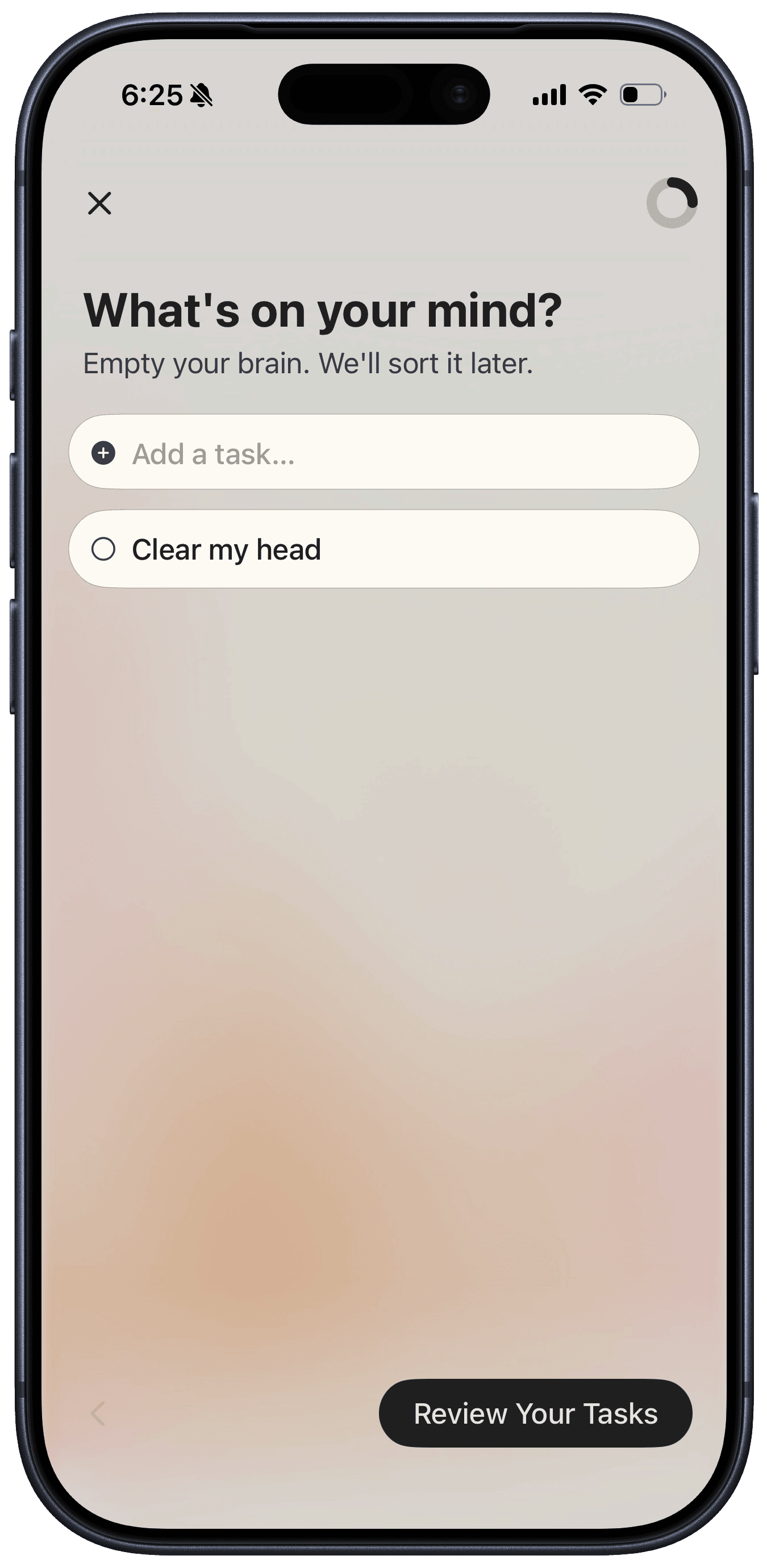
Capture — Brain dump anything that's on your mind. Just type, hit return, type the next thing. No triage yet, you're just getting thoughts out of your head.
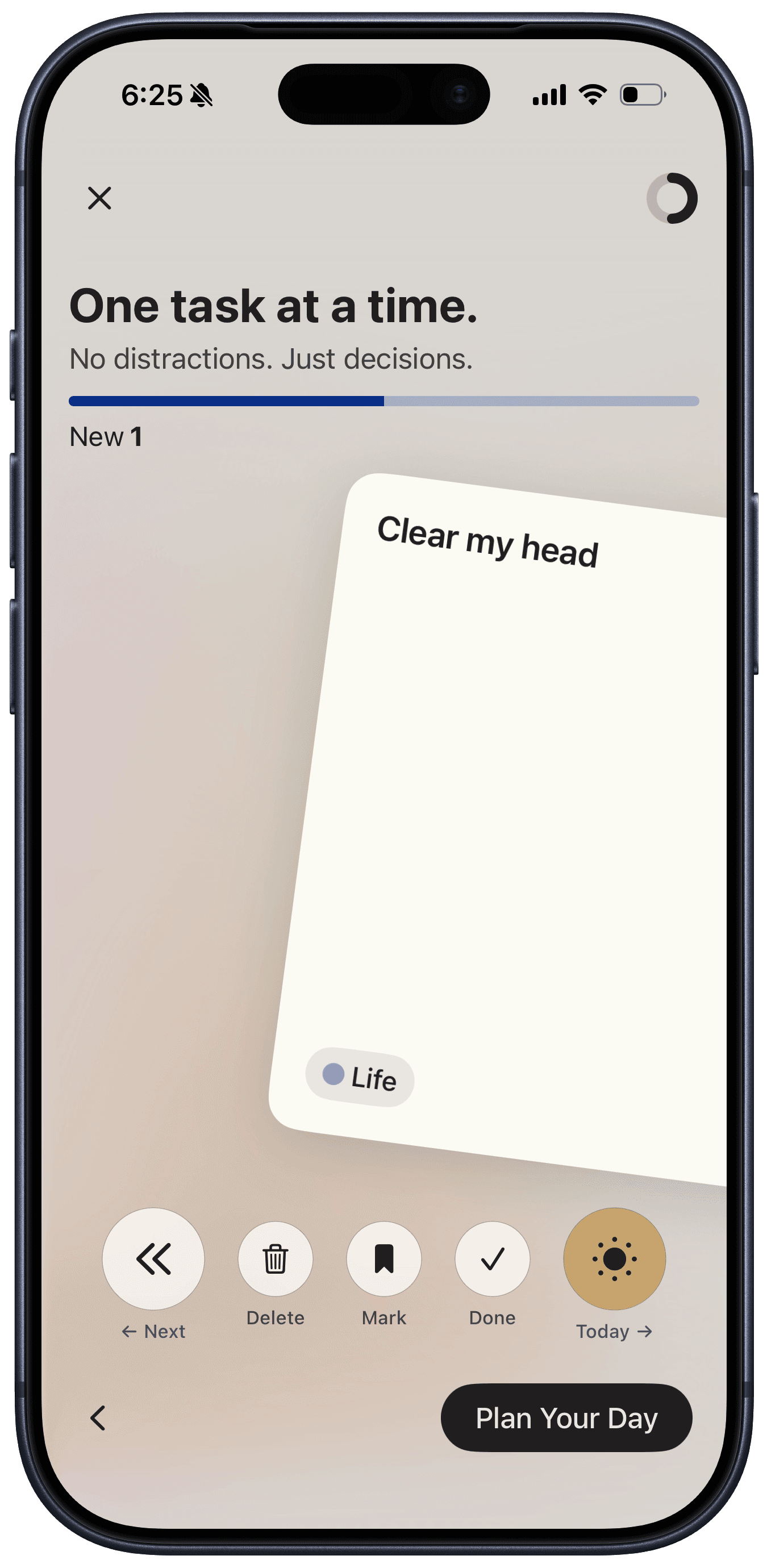
Reckon — Go through anything overdue and your captured items, one card at a time, and make a decision on each of them.
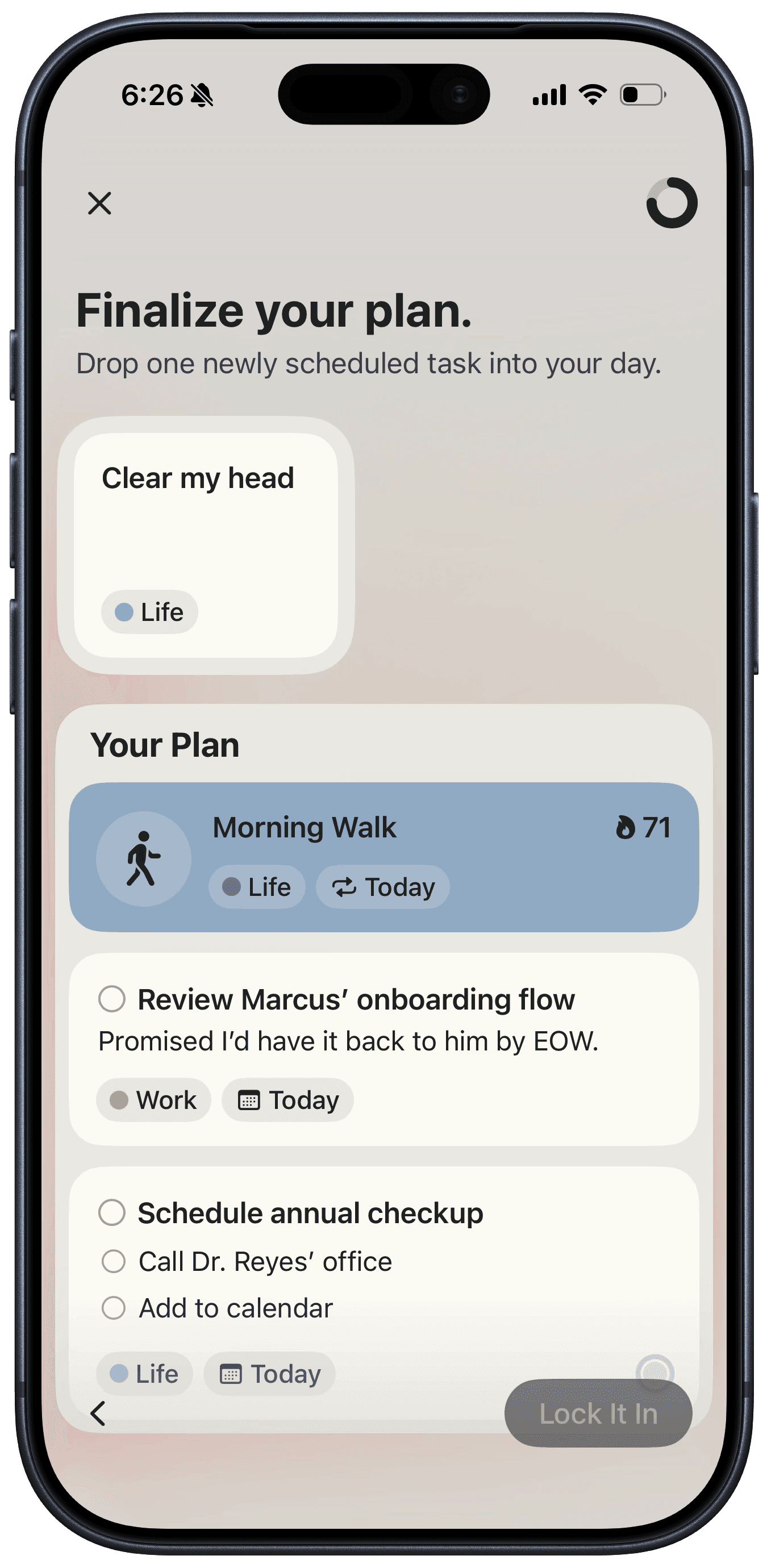
Commit — Your captured and rescheduled tasks sit in a shelf at the top. Drag them down into the Your Plan list to integrate into whatever plan you'd already set for the day.
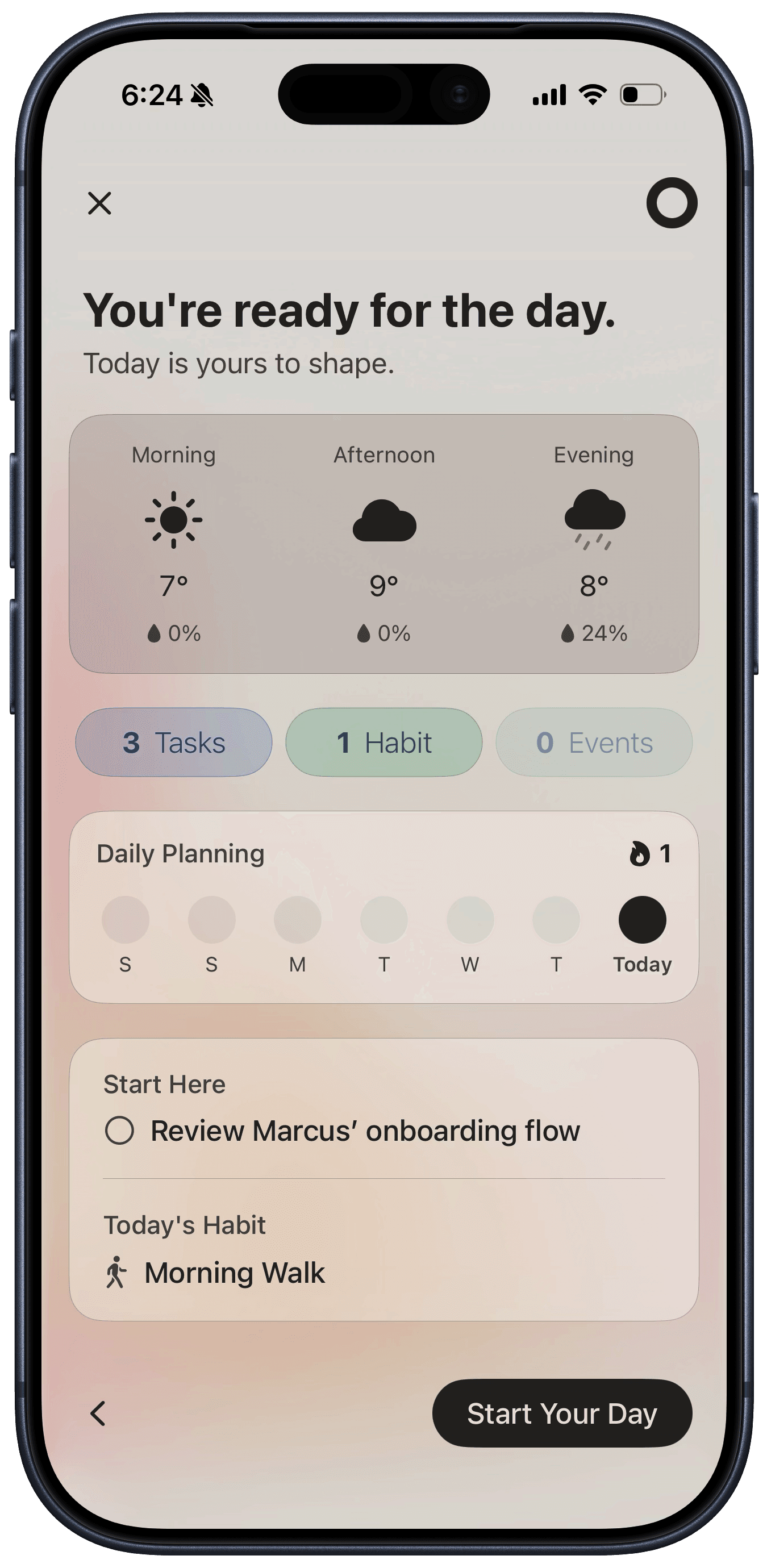
Start — Overview of your day with some helpful prompts on what's coming up first.
Wind Down (evening)
Appears on the Today tab in the evening at your chosen time. Tap Start to begin.
Capture — Brain dump again. What's left on your mind from today?
Reckon — Review anything left undone today and anything new you added in Capture.
Commit (optional) — Get a head start on planning for tomorrow.
Reflect — Quick overview of your day so you can take a moment to be proud of what you were able to accomplish.
Note: You can dismiss ether Ritual prompt by swiping left on it.
Settings
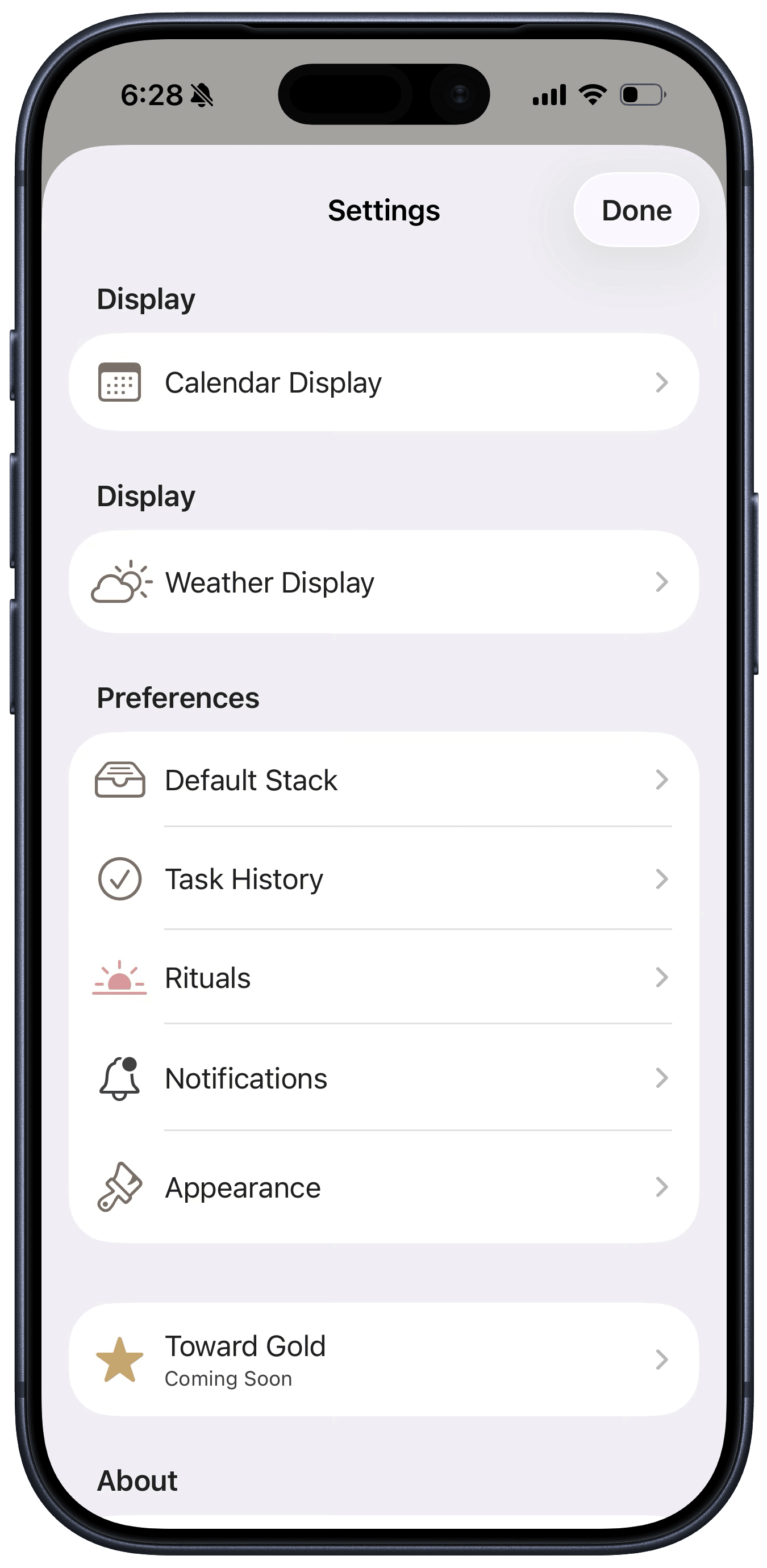
Calendar Display — Turn Calendar visibility on or off and choose which calendars are shown.
Weather Display — Turn Weather on or off and change your temperature units.
Default Stack — Another way to change your default Stack.
Task History — Change how often (or if at all) your completed Tasks are deleted.
Rituals — Change your notification schedule for Settle In and Wind Down.
Notifications — Does nothing right now!
Appearance — Change your text style or swap between three different colour palettes.
Toward Gold — Not the final name, but this is where the subscription will live.